Unlock Your Digital Garden: Mastering the 22 Brushes of Flowers Stamps for Procreate
Imagine filling a blank canvas with a blooming meadow in seconds, not hours. That is the immediate promise of the 22 Brushes of Flowers Stamps for Procreate. For digital artists, illustrators, and even small business owners looking to elevate their brand visuals, this toolset offers a shortcut to professional-looking floral elements without requiring years of botanical study. However, like any powerful digital asset, its value is entirely dependent on how you integrate it into your workflow. Many creators rush to download and apply these stamps, only to find their artwork looks flat, repetitive, or technically flawed. To truly benefit from this collection, you need to understand not just what the brushes do, but how to use them correctly within the specific ecosystem they were built for.
Understanding the Tool and Its Limitations
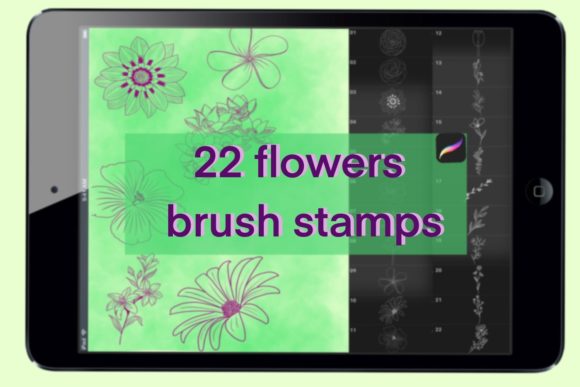
At its core, this set includes 22 distinct stamp brushes designed to replicate various floral shapes and textures. The concept is simple: with a light touch of one brush, you can create your garden, use them as tattoo templates, add to your illustrations, and much more. The efficiency gain is undeniable. Instead of painting every petal from scratch, you tap your screen, and a detailed flower appears. This is particularly useful for hobbyists who want to create greeting cards, bloggers needing quick header images, or entrepreneurs designing product packaging.
However, a critical misunderstanding often arises regarding compatibility. These brushes are compatible only with the Procreate app. This is not a suggestion; it is a technical requirement. A common and frustrating mistake occurs when users purchase digital assets expecting them to work across multiple platforms like Photoshop, Clip Studio Paint, or Adobe Fresco. The file format for Procreate brushes (.brush or .brushset) is proprietary. If you attempt to import these into other software, they simply will not load. Before you buy, verify that your primary workflow exists within the Apple ecosystem. If you are a hybrid artist switching between an iPad and a Windows tablet, relying solely on this set could disrupt your consistency.
The Hardware Reality Check
Even within the Procreate environment, there are hardware prerequisites that are frequently overlooked. The documentation clearly states: You need an iPad Pro, Apple Pencil, or a compatible, pressure-sensitive stylus to use these brushes effectively. While Procreate runs on standard iPads, the nuance of "stamping" often relies on pressure sensitivity to vary the opacity or size of the floral element subtly. Using a finger or a non-pressure-sensitive capacitive stylus can result in a uniform, robotic look where every flower appears identical in weight and presence.
Consider the scenario of a beginner using an older iPad model without Apple Pencil support. They might download the set, tap the screen, and wonder why the flowers lack the organic variation seen in promotional images. The issue isn't the brush quality; it's the input method. To avoid this disappointment, ensure your device supports pressure sensitivity. If you are using a third-party stylus, test its compatibility with Procreate's pressure settings before investing in specialized brush sets. This small check saves money and ensures you can leverage the full potential of the tool.
Avoiding the "Copy-Paste" Aesthetic
The most significant artistic pitfall with stamp brushes is overuse. Because the 22 Brushes of Flowers Stamps for Procreate make it so easy to populate a canvas, there is a temptation to fill every empty space with a flower. This leads to cluttered compositions that lack focal points. When every element is equally detailed, the viewer's eye has nowhere to rest. The result is an illustration that feels busy rather than beautiful.
To counter this, treat these stamps as building blocks, not the final structure. A better approach is to use the stamps as a base layer and then paint over them. Add shadows, highlights, or unique color gradients that match your specific lighting scenario. For instance, if you are creating a tattoo template, the stamp provides the outline and basic shape, but you must adjust the flow to fit the curvature of the body part you are designing for. Blindly stamping a flat image onto a curved surface mockup will look unrealistic. Always transform, rotate, and warp your stamps to fit the perspective of your piece.
Another common error is ignoring color harmony. Stamp brushes often come with default colors that may clash with your chosen palette. Do not assume the default hue is the final choice. Use Procreate's hue, saturation, and brightness adjustments, or utilize blending modes like "Multiply" or "Overlay" to integrate the floral stamps seamlessly into your background. This extra step transforms a generic asset into a custom component of your art.
Installation and Workflow Efficiency
Technical hiccups can also derail your creative session. The process is straightforward—download the brush set file and import it into your brushes in Procreate—but mistakes happen during the transfer. Users often try to open the file directly from a email attachment or a cloud storage preview without saving it to the iPad's "Files" app first. This can cause import errors or corrupted brushes.
Here is the reliable method: Save the downloaded file to your iPad's local storage. Open Procreate, navigate to the Brush Library, swipe right on any category to reveal the menu, and select "Import." Navigate to your saved file. Once imported, organize these 22 stamps into a dedicated group within your library. This prevents them from getting lost among your default round brushes. Organization is key to efficiency; when you are in the flow of creation, you shouldn't be hunting for the right tulip or rose stamp.
Making the Right Decision for Your Needs
Before finalizing your decision to use this set, ask yourself what you intend to create. Are you looking for hyper-realistic botanical studies, or do you need whimsical accents for a planner? The 22 Brushes of Flowers Stamps for Procreate excel at the latter. They are designed for speed and stylistic flair. If your goal is scientific accuracy, you might find the stylized nature of stamps limiting. However, for marketers creating social media content, educators making engaging worksheets, or freelancers turning around quick client drafts, this set is a productivity powerhouse.
It is also worth noting the versatility of the set beyond traditional illustration. The description mentions using them as tattoo templates. This is a valid use case, but remember that tattoo stencils require clean, high-contrast lines. You may need to adjust the threshold or simplify the stamp output to ensure it translates well to skin. Similarly, for surface pattern design, these stamps can be tiled to create seamless backgrounds, provided you vary their rotation and scale to avoid obvious repetition patterns.
In conclusion, the value of this brush set lies in your ability to wield it with intention. It is not a magic wand that guarantees masterpiece status, but rather a sophisticated tool that accelerates your workflow when used correctly. By respecting the hardware requirements, avoiding the trap of repetitive composition, and integrating the stamps thoughtfully into your color and lighting schemes, you can create stunning digital gardens effortlessly. Remember, after you choose a stamp, the real art begins when you tap your screen and then decide what to do next. Whether you are a seasoned pro or just starting your digital journey, these 22 stamp brushes offer a delightful way to bring nature into your digital creations, provided you keep these practical considerations in mind.